
🍓 Getting Started with Raspberry Pi [06] Connecting from Raspberry Pi to a Local LLM
Getting Started with Raspberry Pi 4
- [01] Hardware Setup
- [02] Installing Raspberry Pi OS
- [03] Initial Setup and Operation Check
- [04] Editing Raspberry Pi Files from VS Code on a Work PC via SSH
- [05] Setting Up a Python Environment
- [06] Connecting from Raspberry Pi to a Local LLM
- [07] Trying Ollama and Lightweight Models on Raspberry Pi
👀 Table of Contents
- 🎯 Trying to connect from Raspberry Pi to a local LLM
- 🦙 Checking whether Ollama is running
- 📍 Checking the local IP address
- ✅ Checking connectivity from Raspberry Pi
- ➡️ Sending a request to the Ollama API from Python
- ⏱️ Measuring the response time
- ✍️ Summary of this step
🎯 Trying to connect from Raspberry Pi to a local LLM
In the previous article, I prepared the Python development environment on the Raspberry Pi.
This time, I will use that Python environment to connect to a local LLM running on the PochomLab machine inside the LAN.
Instead of running a heavy LLM directly on the Raspberry Pi, the inference is handled by the PochomLab machine, while the Raspberry Pi sends requests over the network.
With this setup, the Raspberry Pi can handle lightweight processing, sensors, and simple input/output, while the heavier LLM processing is left to the more powerful machine.
🦙 Checking whether Ollama is running
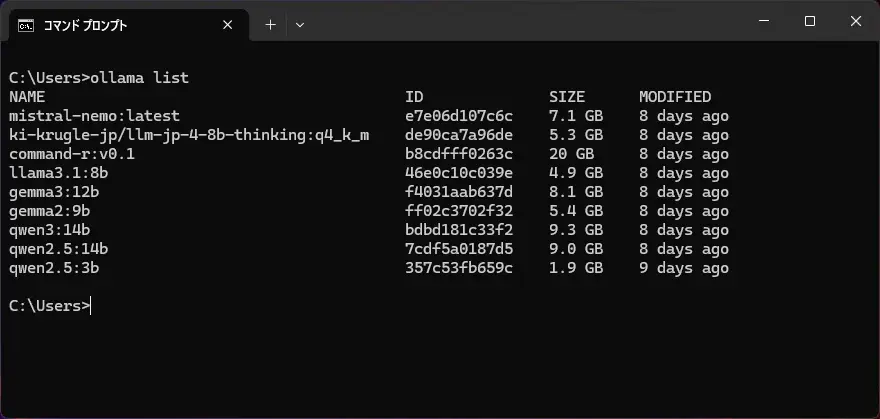
First, I checked whether Ollama was running on the PochomLab machine.
In PowerShell or Command Prompt, run the following command.
ollama listIf the list of installed models is displayed, it is OK.
To check the actual operation, start the model you want to use.
ollama run gemma3:12bIf you are using a different model, check it with that model name.
ollama run <model-name>If the installed model can be run, the Ollama setup on the PochomLab machine is ready.
📍 Checking the local IP address
Next, I checked the local IP address of the PochomLab machine so that the Raspberry Pi could connect to it.
On Windows, run the following command in PowerShell or Command Prompt.
ipconfigCheck the IPv4 address shown under the Wi-Fi or Ethernet section.
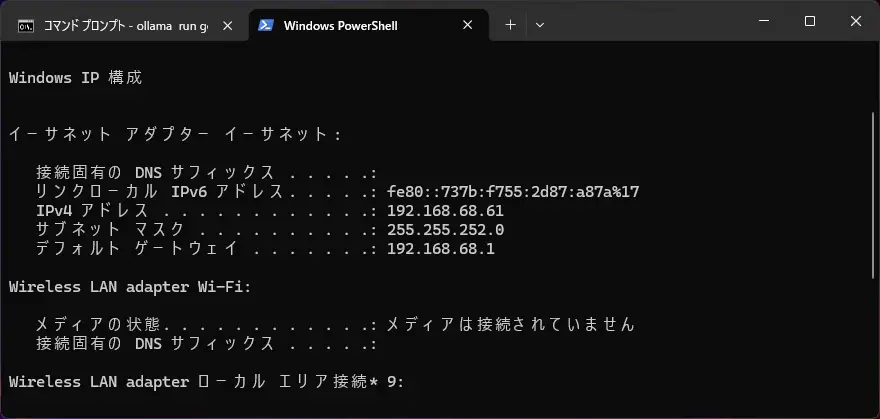
In this case, the Ollama API URL as seen from the Raspberry Pi is as follows.
http://192.168.68.61:11434The default port for Ollama is 11434.
✅ Checking connectivity from Raspberry Pi
From here, I worked on the Raspberry Pi side.
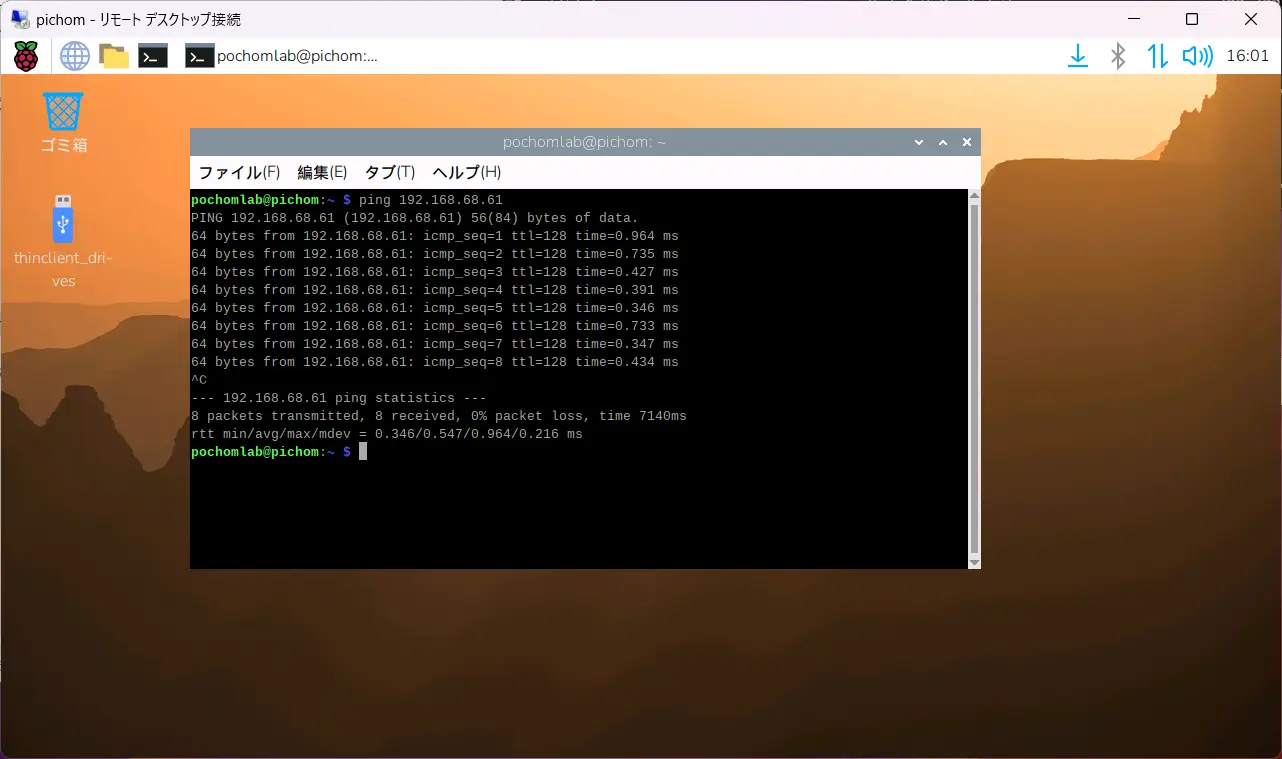
First, I used ping to check whether the Raspberry Pi could reach the PochomLab machine over the network.
ping 192.168.68.61If responses come back, it means the PochomLab machine is visible on the network, at least at the basic network level.
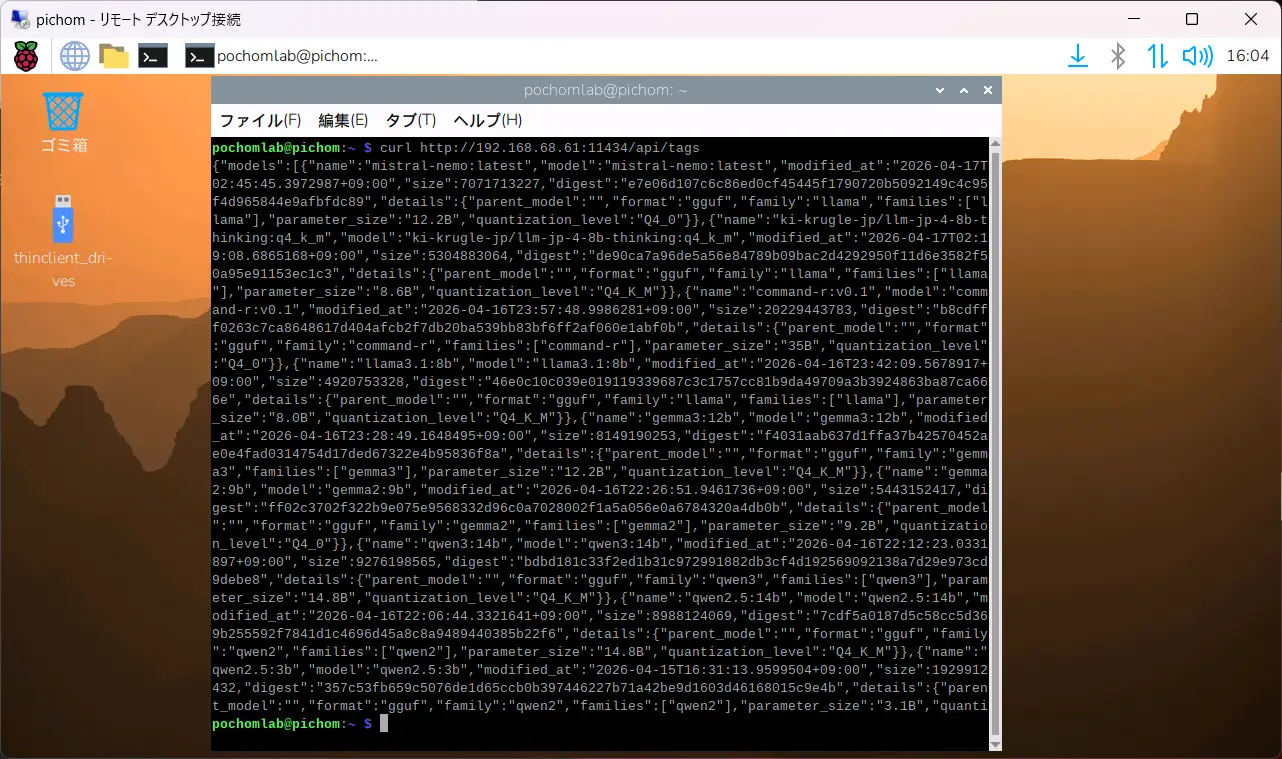
Next, I used curl to check whether the Ollama API was accessible.
curl http://192.168.68.61:11434/api/tagsIf JSON similar to a model list is returned, the Raspberry Pi can see Ollama running on the PochomLab machine.
{
  "models": [
    ...
  ]
}
Once this works, Python should also be able to send requests to the same URL.
➡️ Sending a request to the Ollama API from Python
I moved into the working folder created in the previous article, Setting Up a Python Environment.
cd ~/projects/pochomlab-pi
source .venv/bin/activate
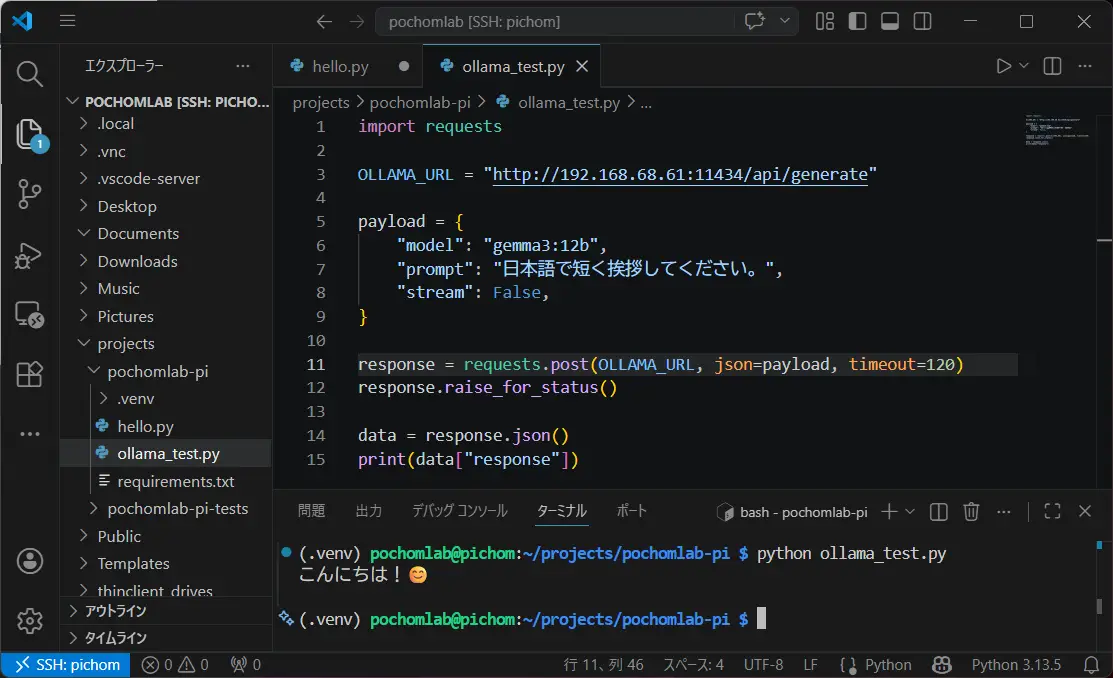
First, I created ollama_test.py.
nano ollama_test.pyThe contents are as follows.
import requests

OLLAMA_URL = "http://192.168.68.61:11434/api/generate"

payload = {
    "model": "gemma3:12b",
    "prompt": "日本語で短く挨拶してください。",
    "stream": False,
}

response = requests.post(OLLAMA_URL, json=payload, timeout=120)
response.raise_for_status()

data = response.json()
print(data["response"])
After saving the file, I ran it.
python ollama_test.pyIf a Japanese response is displayed, the test is successful.
At this point, I confirmed that a Python program running on the Raspberry Pi can send a request to the local LLM on the PochomLab machine.
⏱️ Measuring the response time
Next, I added a little more code to measure how long the response takes.
import time
import requests

OLLAMA_URL = "http://192.168.68.61:11434/api/generate"

payload = {
    "model": "gemma3:12b",
    "prompt": "日本語で短く挨拶してください。",
    "stream": False,
}

start = time.time()

response = requests.post(OLLAMA_URL, json=payload, timeout=120)
response.raise_for_status()

elapsed = time.time() - start
data = response.json()

print(data["response"])
print(f"\nElapsed: {elapsed:.2f} sec")
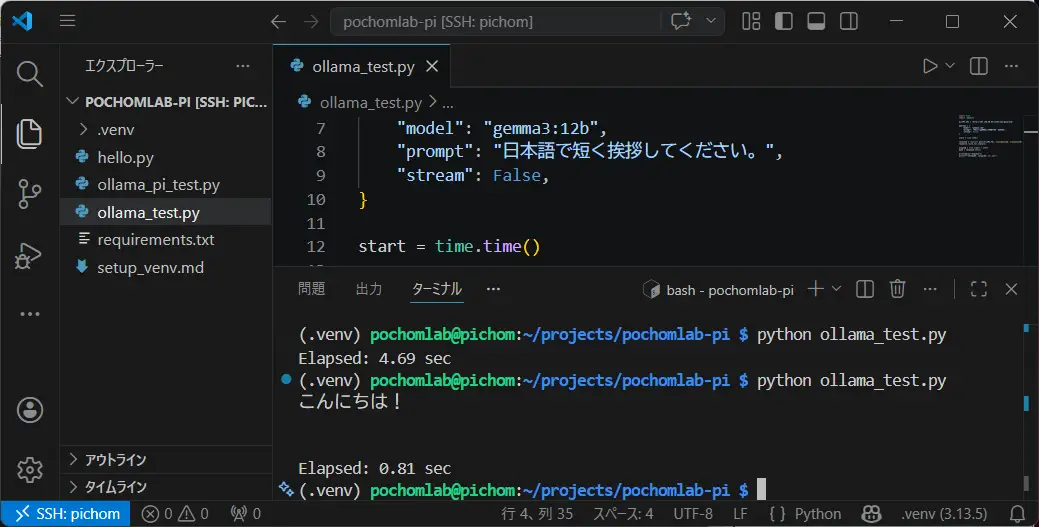
I ran the script again.
python ollama_test.pyThe first run takes a little longer because the model needs to be loaded.
In this environment, the first request took about 4.7 seconds. After that, since the model was already loaded, responses came back in about 0.8 seconds.
Just seeing this difference makes it clear that, when using a local LLM, it is better to think separately about the initial model loading time and the response time after the model has been loaded.
✍️ Summary of this step
This time, I connected from the Raspberry Pi to the local LLM running on the PochomLab machine, and confirmed that a Python program could send requests to it.
The flow checked in this article was as follows.
- Check whether Ollama is running on the PochomLab machine
- Check the local IP address of the PochomLab machine
- Check connectivity from the Raspberry Pi using
pingandcurl - Send a request to the Ollama API from Python
- Measure how long the response takes
With this, I completed the first check needed to call a local LLM from the Raspberry Pi.
Next time, I will install Ollama on the Raspberry Pi itself and try running a lightweight model.